Introduction to SQL
Background
Type of databases
Originally databases were represented with hierarchical database system:
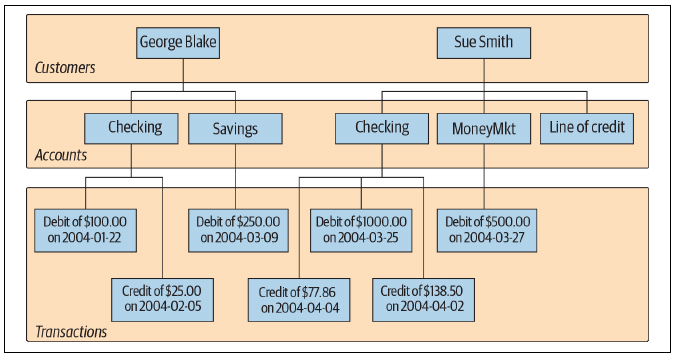
This structure is also known as single-parent hierarchy since every account has its own transactions.
Another implementation is provided by the network database system:
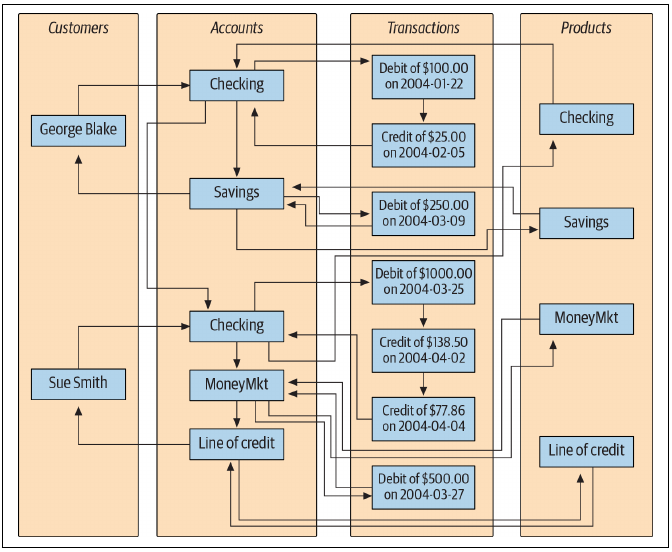
To find Sue’s money market account transactions, you would need to:
- Find Sue’s record;
- Follow the link from Sue to her list of accounts;
- Traverse the chain of accounts until you find the money market account;
- Follow the link from the money market record to its list of transactions.
The relational model, proposed in 1970, represents data in tables:
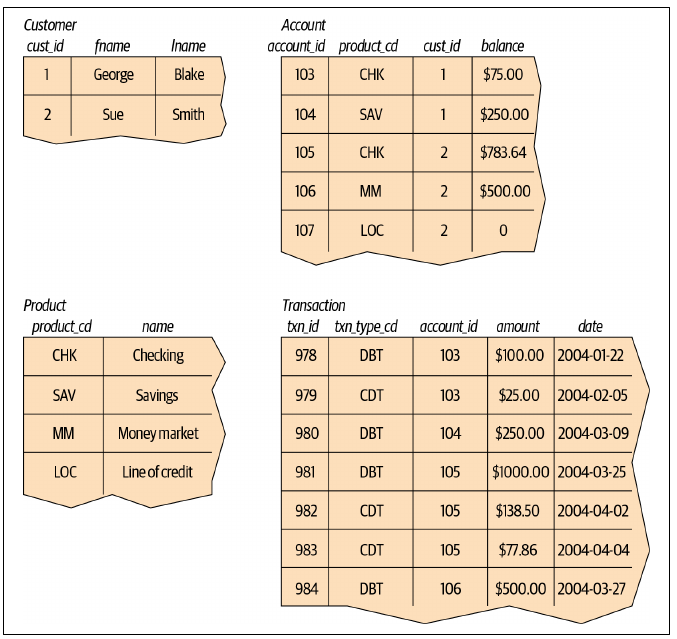
Each table represents an entity, and each table records specific data that is useful to the entity.
Each table holds a column that identifies the entity, called the primary key. It is called a compound key when the primary key consist of two or more columns. A primary key is said to be:
- Surrogate: When the value of the information is not derived from the entity. For example: a randomly chosen number;
- Natural: When the value of the information represents the identity. For example: the person’s name.
Keys that are used to navigate to another table are called foreign keys.
Terminologies
- Entity: something of interest that is to be saved in the database;
- Column: a piece of data that is saved in the database;
- Row: a set of columns that, together, represent the entity. Also called a record;
- Table: a set of rows that reside in memory;
- Result set: the result of an SQL query;
- Primary key: one or more columns that are used as a unique identifier for the entity;
- Foreign key: one or more columns that can be used to identify a row in another column.
Create and populate a database
First, you need to install a version of the MySQL server.
For this chapter, you must load the sample database: Sakila. After starting the mysql command-line client with the command:
mysql -u root -pIt is possible to load the sakila database with:
source /path/to/sakila-schema.sql;
source /path/to/sakila-data.sql;
You can view all available databases with:
show databases;There are two ways to access a database:
- By using the
usecommand within the MySQL command line:use sakila; - Directly from the command line:
mysql -u root -p sakila
Datatypes
SQL defines a lot of data types. The most commonly used types handle:
Characters: For a fixed-length string is
char(n)and for a variable-length string isvarchar(n), wherenis the maximum number of characters that the string can have. The difference between them is that the first always usenbytes, while the second uses a variable number of bytes depending on the length if the stringThe maximum size of
char()is 255 bytes, while forvarchar()it is 65535 bytes.To see all available character sets in MySQL, use:
SHOW CHARACTER SET;If the last column
Maxlenis greater than 1, it means that the character set uses multibyte characters. The default character set can be defined:- At the creation of the database: With the command:
CREATE DATABASE example CHARACTER SET latin1; - For a single column: By specifying, during the creation of the table, the character set to be used for that column:
VARCHAR(20) character SET latin1
- At the creation of the database: With the command:
Text: Used when the string is larger than 64KB,
varchar’s limit. The available text types are:tinytext: with a maximum size of 25B. Now obsolete;text: with a maximum size of 65535B. Now obsolete;mediumtext: with a maximum size of 16777215B;longtext: with a maximum size of 4294967295B.
Inserting data larger than the maximum size will not generate an error, since the data will be truncated. Sorting for
texttypes is limited to the first 1024 bytes.These types are unique to MySQL.
Numbers: There are various types available for handling numbers in MySQL, the range of numbers that can be stored in these types depends on both the datatype’s size and its definition, which can be either signed or unsigned. For handling integer numbers, the available types are:
tinyint: from -128 to 127 or from 0 to 255;smallint: from -32768 to 32767 or from 0 to 65535;mediumint: from −8388608 to 8388607 or from 0 to 16777215;int: from −2147483648 to 2147483647 or from 0 to 4294967295;bigint: from -2^63 to 2^63-1 or from 0 to 2^64-1.
For handling floating point numbers, the available types are:
float(p, s): with a range from −3.402823466E+38 to −1.175494351E-38 or from 1.175494351E-38 to 3.402823466E+38;double(p, s): with a range from −1.7976931348623157E+308 to −2. 2250738585072014E-308 or from 2.2250738585072014E-308 to 1.7976931348623157E+308. The parameterspandsrepresent the precision and the scale, respectively. The precision is the total number of digits of the numbers, while the scale is the number of digits after the decimal point.
Dates and time: The available types are:
date: with default formatYYYY-MM-DD, ranging from January 1, 1000, to December 31, 9999;datetime: with default formatYYYY-MM-DD HH:MI:SS, ranging from midnight on January 1, 1000, to midnight on December 31, 9999;timestamp: same asdatetimebut ranging from midnight on January 1, 1970, to 22:14:07.999 on January 18, 2038;year: with formatYYYY, ranging from 1901 to 2155;time: with formatHHH:MI:SS, ranging from -838:59:59 to 838:59:59. To enter a value in these types, you must provide a string in the specified format.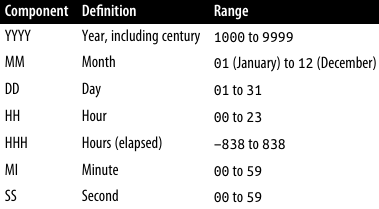
When defining the types
datetime,timestamp, andtime, you can also specify a fractional seconds part, with a maximum precision of 6 digits.
Creating a table
When creating a table, it is a good idea to note down:
- What you want to save;
- The types of data needed to represent what you want to save;
- The values available for these types of data.
Once this is done, the concept of normalization is applied: duplicate values or composite keys are removed from the table. For example, first names are separated from last names, instead of having a single column for both.
In this step, you can add a column containing the primary key of the row, in most cases an unsigned integer. A table for storing data about people could be:
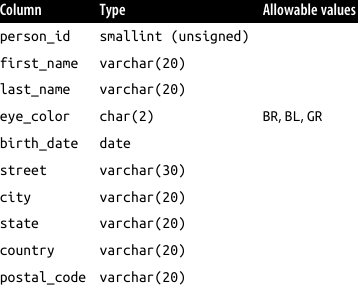
The MySQL command to create this table is therefore:
CREATE TABLE person
 (person_id SMALLINT UNSIGNED,
  fname VARCHAR(20),
  lname VARCHAR(20),
  eye_color CHAR(2),
  birth_date DATE,
  street VARCHAR(30),
  city VARCHAR(20),
  state VARCHAR(20),
  country VARCHAR(20),
  postal_code VARCHAR(20),
  CONSTRAINT pk_person PRIMARY KEY (person_id)
);
A professional way to define a database is to use conceptual schemas, followed by logical schemas, and finally physical schemas, by declaring the actual database on MySQL. This approach is explained in detail in my university’s notes in the course Basi di Dati.
To enforce that eyes can only be brown (BR), blue (BL), or green (GR), you can either:
- Create a check: MySQL allows this operation but does not enforce it;
eye_color CHAR(2) CHECK (eye_color IN('BR', 'BL', 'GR')), - Create an
ENUMtype: The column will be defined as:eye_color ENUM('BR', 'BL', 'GR'),
After a table is created, it is possible to obtain a description of its columns with the command:
desc table;Where:
- The first column
Fieldshows the name of the field; - The second column
Typeshows the type; - The third column
Nullspecifies whether the field can be empty or not; - The fourth column
Keyspecifies whether the field is a primary key or a foreign key; - The fifth column
Defaultspecifies whether the field has a default value, if none is provided; - The sixth column
Extrashows other information relevant to the column.
Populate and edit tables
Data is inserted in tables with the INSERT statement. The statement takes three parameters: the name of the table, the columns’ name, and the values to be inserted.
Primary keys, which must always be unique, can be generated in two ways:
- By adding one to the largest existing value: This approach is not optimal, particularly in a multi-user environment, as two users might attempt to insert a row simultaneously.
- By letting the database handle the generation of the primary key: MySQL provides an auto-increment feature for this purpose. To modify the
persontable to use auto-increment, you can write:
Primary keys that use auto-increment are flagged in theALTER TABLE person MODIFY person_id SMALLINT UNSIGNED AUTO_INCREMENT;Extracolumn of thedesccommand.
Data insertion is done with the INSERT statement:
INSERT INTO person
  (person_id, fname, lname, eye_color, birth_date)
  VALUES (null, 'William', 'Turner', 'BR', '1972-05-27');
The provided value for person_id is null, since MySQL will automatically generate the value for this column.
If the operation is successful, the following message will appear: Query OK, 1 row affected. You can verify that the row has been correctly inserted with:
SELECT person_id, fname, lname, birth_date FROM personThe primary key will be set to 1, since William Turner is the first row in our database. To view all entries that have person_id = 1, write:
SELECT (person_id, lname, fname, birth_date)
  FROM person
  WHERE person_id = 1;
The UPDATE statement is used to modify the data associated with William Turner:
UPDATE person
  SET street = '1225 Tremont St.',
    city = 'Boston',
    state = 'MA',
    country = 'USA',
    postal_code = '02138'
  WHERE person_id = 1;
Writing WHERE person_id < 10 would have updated all rows with person_id less than 10.
Data is deleted from the table with:
DELETE FROM person
  WHERE person_id = 1;
Common errors that can occur when using SQL statements are:
- Using an already used value for a primary key: If you try to enter a non-unique key MySQL returns
ERROR 1062 (23000): Duplicate entry ‘1’ for key ‘PRIMARY’. - Referencing a foreign key that doesn’t exist: If a table contains a column
CONSTRAINT fk_fav_food_person_id FOREIGN KEY (person_id)and you insert an ID that is not present in thepersontable, MySQL will return:ERROR 1452 (23000): Cannot add or update a child row: a foreign key constraint fails (‘sakila’.'favorite_food', CONSTRAINT ‘fk_fav_food_person_id’ FOREIGN KEY (‘person_id’) REFERENCES ‘person’ (‘person_id’)). - Violation of possible values: If you try to set an eye color that is not allowed, for example
ZZ, MySQL returns:ERROR 1265 (01000): Data truncated for column ‘eye_color’ at row 1. - Date entered the wrong format: If the string containing the date is formatted incorrectly, MySQL will return:
ERROR 1292 (22007): Incorrect date value: ‘DEC-21-1980’ for column ‘birth_date’ at row 1.
Query Primer
In the previous chapter, we have connected to a MySQL server and run commands to create and populate a table. To analyze the contents of a table the SELECT statement is used.
The SELECT statement is composed of several components called clauses. These clauses are:
SELECT: It is the only mandatory clause, defining the columns to be retrieved.FROM: To define the table from which to retrieve the data.WHERE: To filter the rows that satisfy a certain condition.GROUP BY: To group the result set according to the values of one or more columns.HAVING: To filter the groups created by theGROUP BYclause.ORDER BY: To sort the result set according to one or more columns.
SELECT
The SELECT clause takes a list of columns, separated by commas. Only the values of the selected columns will be displayed when the query returns.
Writing SELECT * will return all the columns of the table.
The SELECT clause also supports:
- Literals: Such as numbers and strings.
- Expressions: Such as
2 * column_name. - Functions: That can either be built-in or user-defined.
Usually, the SELECT statement is followed by the FROM clause. However, this is not the case (at least in MySQL) when the columns specified are niladic functions. For example:
SELECT version(), user(), database(); -- Shows the version of MySQL, the current user, and the current databaseIt is also possible, and recommended when dealing literals, expressions, and functions, to provide an alias for the column with the AS keyword:
SELECT language_id
        `COMMON` AS language_usage, -- A literal aliased to language_usage
        language_id * 3.14 AS lang_pi_value, -- An expression aliased to lang_pi_value
        upper(name) AS language_name -- A function aliased to language_name
    FROM language;
The AS keyword is optional.
When the selected columns don’t contain the primary key of the table, the query might return duplicate rows. To avoid this, the DISTINCT keyword can be used:
SELECT DISTINCT country FROM city;The DISTINCT keyword must not be abused. To remove duplicates, data has to be sorted, which can be expensive when dealing with big tables.
FROM
The FROM clause is used to specify the table from which to retrieve the data. The clause can contain:
Permanent tables: These are stored in the database and created with the
CREATE TABLEstatement.Derived tables: Tables that are created by a nested
SELECTstatement. For example:SELECT concat(cust.last_name, ', ', cust.first_name) AS full_name, FROM ( SELECT first_name, last_name, address_id FROM customer ) AS cust;Temporary tables: Tables that are not stored in memory and exists only in the current session. They behave exactly as a permanent table and are created with the statement:
CREATE TEMPORARY TABLE temp_table_name (
    column1 datatype,
    column2 datatype,
    ...
);

INSERT INTO temp_table_name
  SELECT column1, column2, ...
  FROM permanent_table_name ...;
Virtual tables: Tables that are not stored in memory but are created on-the-fly when queried. These tables behave exactly as a permanent table and are created with the statement:
CREATE VIEW view_name AS
SELECT column1, column2, ...
FROM table ...;
Tables can be linked together with join operations. The most common one is the inner join. A SELECT statement with an inner join looks like this:
SELECT table1.column1, ..., table2.column1, ...
  FROM table1
  INNER JOIN table2 ON table1.common_column = table2.common_column ...;
Every row from table1 will be matched with corresponding rows from table2. Only the rows that satisfy the conditions in the ON clause will be returned.
In the SELECT statement, the columns can be referenced with the syntax table_name.column_name to avoid collision when two tables share the same column name. Since writing the full table name can be tedious, it is possible to provide an alias for the table with the AS keyword.
Like for the SELECT clause, the AS keyword is optional.
WHERE
The WHERE clause is used to filter the rows returned by the query. The clause contains one or more conditions, connected together by logical operators AND, OR, and NOT, only the rows that satisfy the expressions will be returned.
Parentheses can be used to group expressions and change the precedence of the logical operators.
GROUP BY and HAVING
The GROUP BY clause is used to group the rows that share the same values in one or more columns. These groups can then be filtered with the HAVING clause.
For example, to find the number of people sharing the same first name and to show only the names used by more than one person, you can write:
SELECT fname, lname
  FROM person
  GROUP BY fname
  HAVING COUNT(*) > 1;
ORDER BY
The result of a query is displayed in no specific order. At the end of a SELECT statement it is possible to specify the sorting order. The ORDER BY clause takes a list of columns followed by either ASC (for ascending order, default behavior if omitted) or DESC (for descending order). The syntax is:
SELECT column1, column2, ...
  FROM table
  ORDER BY column1 ASC, column2 DESC, ...;
More columns can be specified because in the first columns we can have duplicates values. The previous example can be ordered like this:
SELECT fname, lname, COUNT(*) AS name_count
  FROM person
  GROUP BY fname
  HAVING COUNT(*) > 1
  ORDER BY name_count DESC, fname ASC, lname ASC; -- First order by the number of people that share the name, then by first name, then by last name
The ORDER BY clause also accepts a numeric parameter that represents the position of the column in the SELECT clause. The following SELECT returns the same result as the previous one:
SELECT fname, lname, COUNT(*) AS name_count
  FROM person
  GROUP BY fname
  HAVING COUNT(*) > 1
  ORDER BY 3 DESC, 1 ASC, 2 ASC;
Filtering
Except statements like INSERT, the WHERE clause can be used in almost every SQL statement to filter the rows that will be affected by the statement.
As said, a WHERE clause contains one or more conditions connected by logical operators AND, OR, and NOT. Conditions are made up by one or more expressions combined with one or more operators.
An expression can be:
- A number or a string literal.
- A column in a table/view.
- A built-in function.
- A subquery.
- A list of expressions.
An operator can be:
- A comparison operator.
- An arithmetic operator.
Condition types
An equality condition is a condition where the = operator is used. This types of conditions are satisfied when both expressions have the same value:
SELECT * FROM person
  WHERE eye_color = 'BL'; -- Selects all people with blue eyes
A disequality condition is the opposite of the equality condition, it uses the <> or != operators to check that the two expressions have different values:
SELECT * FROM person
  WHERE eye_color <> 'BL'; -- Selects all people that don't have blue eyes
A range condition is a condition that checks whether an expression’s value falls within a specified range. This type of condition can be expressed in two ways:
- Using
>=and<=operators:SELECT * FROM person WHERE birth_date >= '1980-01-01' AND birth_date <= '1990-12-31'; -- Selects all people born in the 80s - Using the
BETWEENoperator:SELECT * FROM person WHERE birth_date BETWEEN '1980-01-01' AND '1990-12-31'; -- Selects all people born in the 80s
It is also possible to negate a range condition with the NOT operator to check whether an expression’s value falls outside a specified range:
SELECT * FROM person
  WHERE birth_date NOT BETWEEN '1980-01-01' AND '1990-12-31'; -- Selects all people not born in the 80s
These types of conditions also work with numbers and strings. Range conditions with strings are a bit tricky:
SELECT last_name, first_name
    FROM person
    WHERE last_name BETWEEN 'Davis' AND 'Johnson'; -- Selects all people whose last name is between Davis and Johnson alphabetically
A membership condition checks whether an expression’s value exists in a list of specified values. This type of condition uses the IN operator:
SELECT * FROM person
  WHERE eye_color IN ('BR', 'GR'); -- Selects all people with brown or green eyes
It is possible to provide a subquery as a list of values:
SELECT * FROM person
  WHERE person_id IN (
      SELECT person_id
        FROM favorite_food
        WHERE food_name = 'Pizza'
  ); -- Selects all people whose favorite food is pizza
The IN operator can also be negated with the NOT operator.
A matching condition is used to check whether a string matches a specified pattern. There are two ways to achieve this:
By using the
LIKEoperator with wildcard characters: The available wildcards are:_: To match a single character;%: To match any number of characters (including zero).
An example of a matching condition using the
LIKEoperator is:SELECT * FROM person WHERE last_name LIKE 'S%th'; -- Selects all people whose last name starts with S and ends with thBy using the
REGEXPoperator with regular expressions: An example is:SELECT * FROM person WHERE last_name REGEXP '^S.*th$'; -- Selects all people whose last name starts with S and ends with th
Null values
In SQL there is a special value that exists in every domain called NULL. This value must be used when:
- The value of a column is not applicable.
- The value of a column in not yet known.
- The value of a column is undefined.
This particular value has two properties:
- An expression can be null, but it can never be equal to null;
- No null value is equal to any other null value.
Due to this, the = and <> operators don’t work with null values. They have to be replaced, respectively, with the conditions:
expression IS NULL.expression IS NOT NULL.
Querying multiple tables
Usually, the SELECT statement is used to retrieve data from multiple tables. SQL provides several ways to combine multiple tables into a single one.
To combine every row from one table with every row of another table, thus creating a Cartesian product, the cross join is used. The syntax is:
SELECT c.first_name, c.last_name, a.address
  FROM customer c JOIN address a;
This operation is rarely used, both because of its high computational cost, there will be m * n rows if the first table has m rows and the second table has n rows, and because it is not useful in most cases.
As already explained, the most common way to combine table is the inner join. Logically, an inner join can be seen as a cross join followed by a filtering operation with the conditions specified in the ON clause. The syntax is:
SELECT c.first_name, c.last_name, a.address
  FROM customer c INNER JOIN address a ON c.address_id = a.address_id;
In most database servers, the INNER keyword is optional. When omitted, the JOIN keyword is assumed to be an inner join.
This notation was introduced with the standard SQL92. However, most databases also support older syntax, from before SQL92, where you could simply list the tables in the FROM clause, and then specify the ON coditions alongside the WHERE conditions. For example:
SELECT c.first_name, c.last_name, a.address
  FROM customer c, address a
  WHERE c.address_id = a.address_id;
This syntax should be avoided since it is difficult, in the WHERE clause, to distinguish between filtering conditions and join conditions.
It is possible to join more than one table in a single SELECT statement. The order of the joins is not important, since the database engine will optimize the query execution plan, but the output’s columns might change order.
Joins also works with:
- Subqueries: It is important that the subquery must be aliased. An example is:
SELECT c.first_name, c.last_name, addr.address FROM customer c JOIN ( SELECT address_id, address FROM address ) AS addr ON c.address_id = addr.address_id; - The same table: In an operation called self join. For example, to find all films that has a prequel in a table that has a self-referencing foreign key
prequel_film_id, pointing tofilm_id, you can write:SELECT f1.title AS film_title, f2.title AS prequel_title FROM film AS f INNER JOIN film AS f_prnt ON f_prnt.film_id = f.prequel_film_id WHERE f.prequel_film_id IS NOT NULL;
Set operations
SQL provides three set operations to combine tables:
UNION: To combine two tables by appending the rows of the second table to the first one;INTERSECT: To combine two tables by keeping only the rows that are present in both tables;EXCEPT: To combine two tables by keeping only the rows that are present in the first table but not in the second one.
If you want to keep duplicate rows, you have to add the ALL keyword after the operation name (e.g., UNION ALL).
To use these operations, SQL requires that both tables have the same number of columns and that the columns have the same data types (or it is possible to convert them implicitly).
Some general rules to follow when using set operations are:
- The column names of the tables should have the same alias, otherwise it is impossible to order the result set;
- The order of the operations matters, especially when using
ALL: The standard SQL92 defines thatINTERSECThas the highest priority, however it is possible to change this behavior by using parentheses:( SELECT column1, column2, ... FROM table1 UNION ALL SELECT column1, column2, ... FROM table2 ) INTERSECT ALL SELECT column1, column2, ... FROM table3;
Data generation, manipulation, and conversion
TODO